
How to turn on Spotify Artist Profile Protection and protect your artist profile
Spotify’s new Artist Profile Protection feature gives artists more control over music appearing under their name. Here’s how to enable it and manage incoming releases through Spotify for Artists.
Seeing music you didn’t release appear on your Spotify artist profile can be a headache. Whether it’s a mix-up involving metadata, an artist with the same name or incorrect tagging, it can affect your catalogue and confuse listeners.
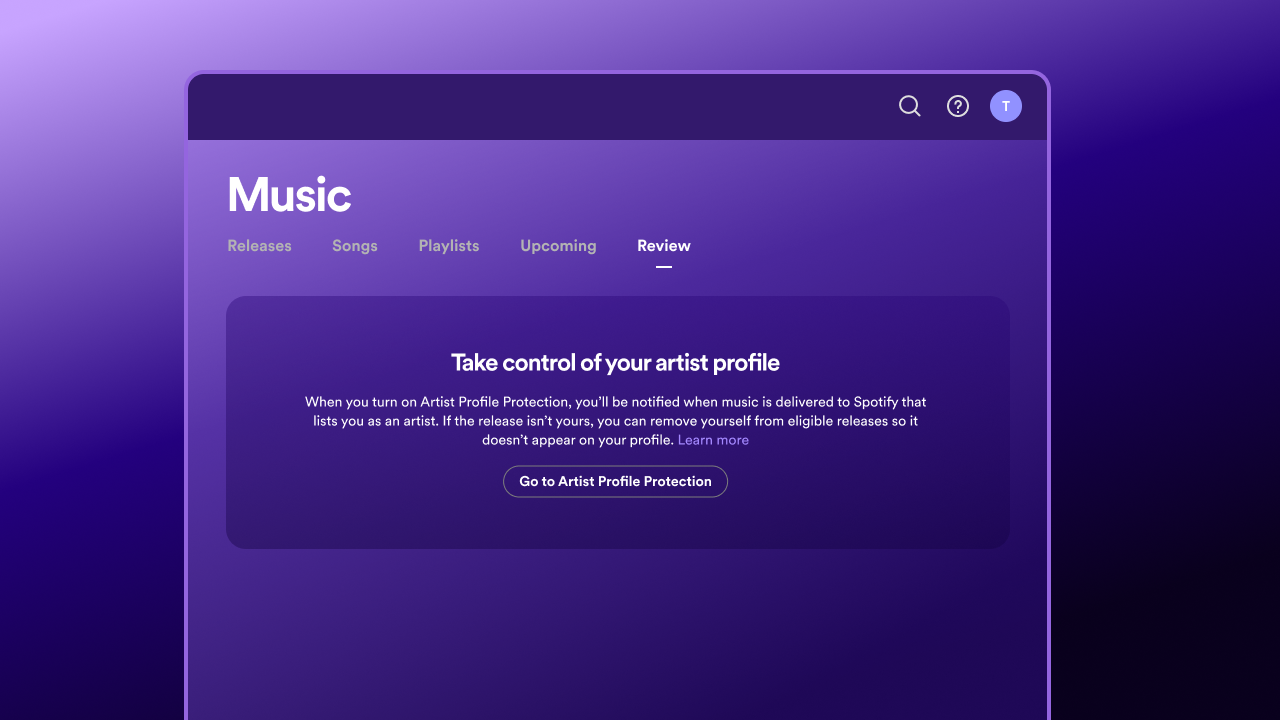
Spotify’s new Artist Profile Protection tool aims to tackle this by notifying artists when music is delivered to their profile and allowing them to remove themselves from releases that aren’t theirs.
Here’s how to get started.
How to enable Artist Profile Protection
Artist Profile Protection is an optional feature available to all artists on Spotify for Artists. Artist Team Admins and Editors can manage the setting on desktop or mobile web.
To turn it on:
- Open Spotify for Artists and select your avatar to open the user menu.
- Select Artist Profile Protection.
- Turn the feature on.
The default setting is ‘Review releases’, which is the recommended option for most artists.
Once enabled, you’ll receive an email notification whenever music is delivered to Spotify with your name attached.
How to review and remove incorrect releases
With Review releases enabled, you can check incoming music and remove yourself from eligible releases that don’t belong to you.
To review releases:
- Head to Music > Review in Spotify for Artists.
- Select For review to see releases waiting for review, or Removed to see releases you’ve already removed yourself from.
- Find the release that isn’t yours and select Remove.
If you remove yourself, the release won’t list you as an artist or appear on your Spotify profile. It also won’t contribute to your streaming statistics or listener recommendations.
You can take action before a release goes live or up to 28 days afterwards. If you don’t do anything, the release will go live as scheduled with you listed as an artist.
Keep in mind that removing yourself through Spotify won’t necessarily remove the release from your profile on other streaming services. You may still need to contact your label or distributor to address any incorrect listings elsewhere.
Should you use Block releases instead?
For artists who frequently experience incorrect tagging or share a common artist name, Spotify also offers an advanced ‘Block releases’ setting.
Rather than simply notifying you about incoming music, this automatically holds releases until you’ve approved them. You can manage these through Music > Approvals, where you’ll find releases marked as needing approval. You can then approve legitimate releases or decline ones that aren’t yours.
There are a couple of things to consider before switching to this setting. You have up to 28 days after a release goes live to take action. If you don’t approve a release that requires approval, it won’t list you as an artist and may not go live on time. Approvals can also take up to 24 hours to process.
Using artist keys with Block releases
When using Block releases, artists also receive a unique artist key. This is a code you can share with trusted distributors, allowing them to deliver pre-approved releases to your protected Spotify profile without requiring manual approval.
You can find your artist key on the Artist Profile Protection page in Spotify for Artists. Only share it with distributors you trust and don’t post it publicly. It’s also worth noting that artist keys may not work with every content provider or distributor.
For most artists, Review releases remains the better choice, as it provides greater protection without requiring you to manually approve every incoming release.
Keep control of your Spotify artist profile
Artist Profile Protection gives artists a new way to monitor the music appearing under their name on Spotify and catch incorrect releases before they cause confusion.
With Review releases enabled, you can stay informed about incoming music while allowing legitimate releases to go live as planned.
The feature is available to all artists through Spotify for Artists. If you haven’t already, it’s worth checking your artist settings and turning it on.
For more information, check out Spotify’s guidance here.
Claim your Spotify for Artists profile with RouteNote
If you distribute your music to Spotify with RouteNote but haven’t yet claimed your Spotify for Artists profile, now is a good time to do so. Having access to Spotify for Artists allows you to manage your artist page, view your streaming statistics and take greater control over the music appearing under your name with Artist Profile Protection.
Follow our guide to claiming your Spotify for Artists profile to get started.
Distribute your music to Spotify and other platforms for free with RouteNote today.