
A Musician’s Guide to Using Canva for Apple Music
Upgrade your visuals on Apple Music and grab the attention of listeners using the easy-to-use, free-to-access designing power of Canva.
For any artist on Apple Music, creating stunning visuals is no longer a luxury—it’s essential for grabbing listener attention. And with the designing power of Canva, you don’t need a big budget or a graphic design degree to craft a professional look.
A striking visual identity is crucial in today’s music landscape. It can be the difference between a potential fan scrolling past or clicking to discover your entire discography. As Canva themselves put it: “Great visuals create an instant connection with your audience through consistent colours, style, and composition that reflect who you are.”
Creating high-quality and stunning visuals doesn’t need to be difficult and you don’t need a degree in graphic design. An idea of the visuals you want to create, an eye for what looks good and what doesn’t, and a simple design tool is all you really need.
Thankfully, there is a simple design tool that empowers all creators with the goods to create high quality imagery and optimise it perfectly for a variety of different locations. Canva is a design platform and website with easy access, intuitive tools, and a powerful shared database of creations to inspire and boost the creative process.
How to Design Every Visual You Need for Apple Music in Canva
There are a number of places where you can get visual as an artist on Apple Music. We’ll walk through what they are, and how to maximise your presence with a Canva design that simply gives you high-quality and eye-catching visuals for each spot.
Crafting Your Iconic Apple Music Artist Image
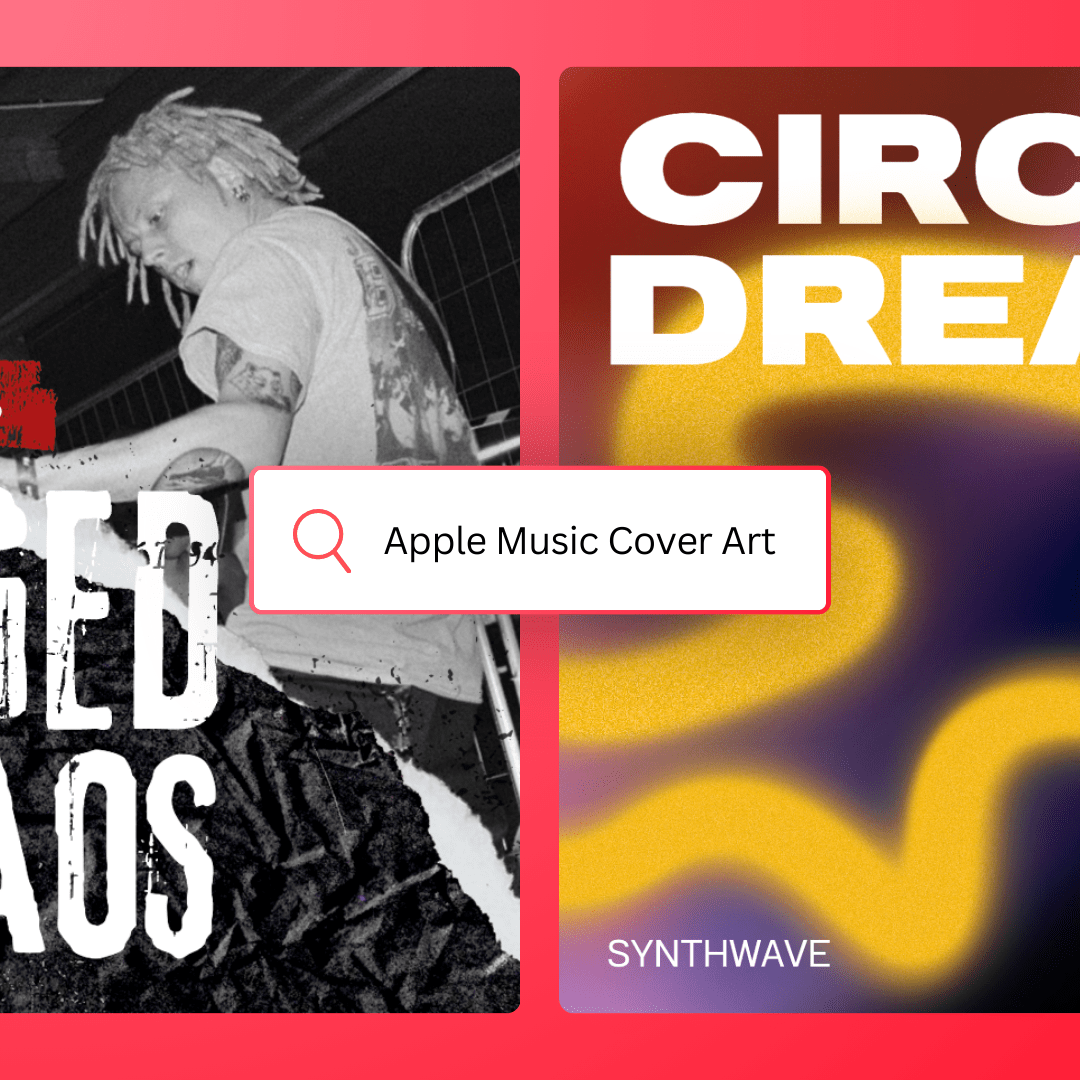
Your artist image is your digital handshake. It’s the circular icon that appears next to your name everywhere on Apple Music, so it needs to be high-quality, iconic, and represent your brand instantly.
The simpler the better works with an artist image, so you may just want to use a really good photo or image that represents your artist brand.
How to Create It in Canva:
- Start with Inspiration: Log in to Canva and use the search bar to explore templates. Try terms like “music artist profile picture” or “band logo” to get ideas, even if you plan to use a photo.
- Choose Your Foundation: You can either start with a blank canvas or adapt a template. For artist images, a high-resolution, professional photograph often works best.
- Refine and Perfect: Upload your chosen photo. Use Canva’s built-in tools like the ‘Edit Photo’ feature to adjust brightness, contrast, and apply filters that match your aesthetic.
- The Circle Crop Test: Crucial Tip: Apple Music will crop your image into a circle. Before you export, place a circle element from the ‘Elements’ tab over your design to preview exactly how it will look. Ensure your face or logo is perfectly centred and not cut off.
Apple Music’s Artist Image guidelines:
- Format: JPG or PNG (72dpi)
- Dimensions: Minimum 2400 x 2400 pixels
- Framing: Keep key elements (especially faces) within the central safe zones.
- Transparency: Not allowed. Ensure your image has a solid background.
- Why: The heading is more descriptive (“Crafting Your Iconic…”). The steps are numbered for clarity. The “Circle Crop Test” is framed as a “Crucial Tip,” making the advice feel more expert. Bolding key terms helps with scannability.
Designing Unforgettable Album, EP & Single Cover Art
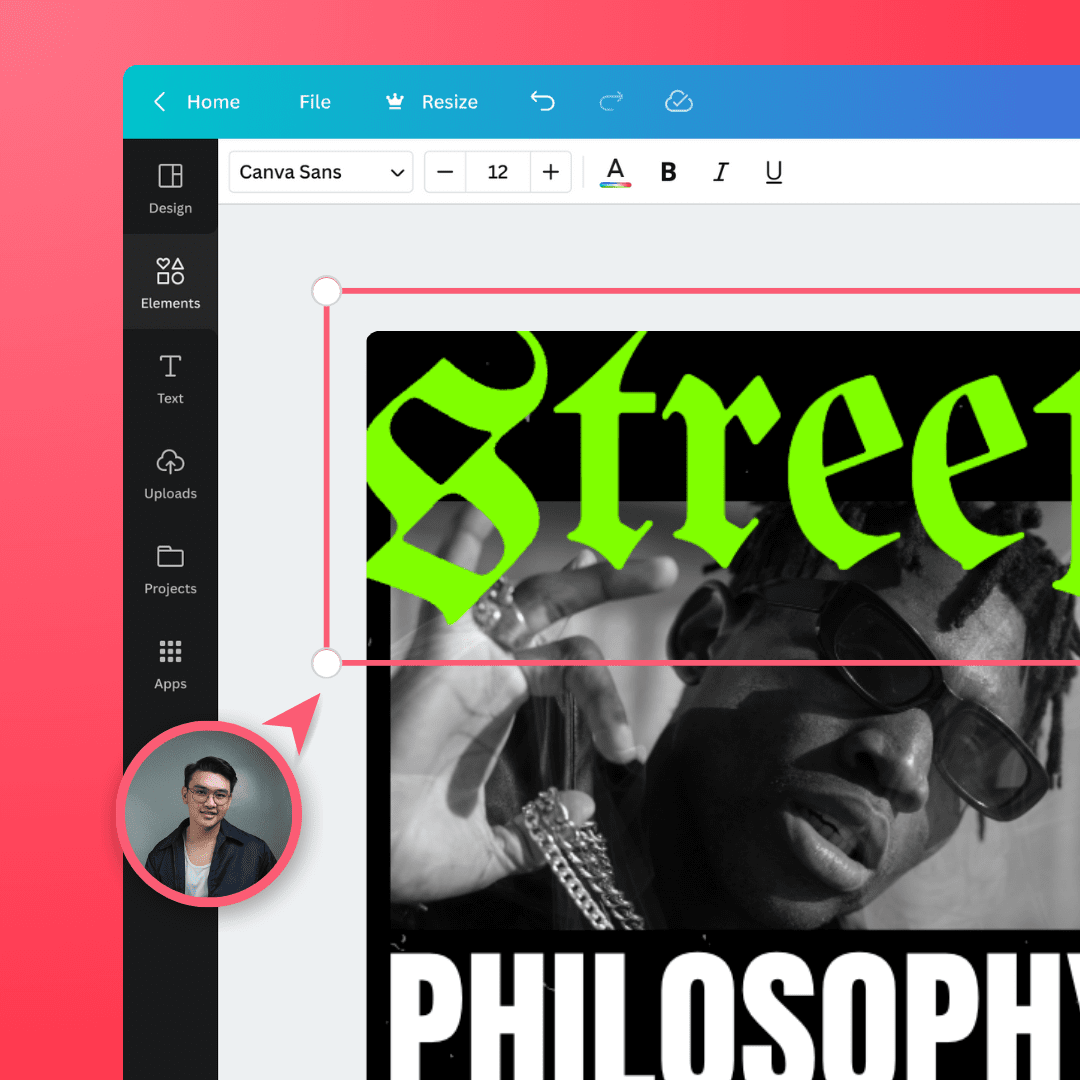
Your cover art is the single most important visual for any release. It’s the thumbnail for your sound, and it needs to connect emotionally with the music while being bold enough to stand out in a playlist.
Whether you’re releasing a single, an Extended Play, or a full album – great cover art is key.
How to Create It in Canva:
- Find Your Vibe: Canva’s template library is your best friend. Search for “album cover art” or “single cover” and filter by genre or style (e.g., “indie album cover”, “electronic music art”).
- Make It Your Own: Never use a template as-is. This is your chance to be creative.
- Typography: Swap out fonts to match your artist brand.
- Imagery: Replace stock photos with your own images, or use Canva’s ‘Elements’ tab to find unique graphics, textures, and shapes.
- Colour Palette: Adjust colours to reflect the mood of your music.
- Symmetry and Alignment: Use Canva’s built-in guides (the pink lines that appear as you move objects) to ensure your text and elements are perfectly centred and aligned for a professional finish.
Apple Music Cover Art guidelines:
- Format: JPG, PNG, or GIF
- Dimensions: Minimum 4000 x 4000 pixels (higher is better!)
- Shape: Must be a perfect square.
- Why: Again, a more dynamic heading. The steps provide more specific, actionable advice (e.g., “filter by genre,” “swap out fonts”) rather than just saying “customise it.” This adds more value.
Bringing Your Cover Art to Life with Album Page Motion
Album Page Motion turns your static cover art into a living, breathing visual that adds a dynamic, premium feel to your release. It’s a subtle but powerful way to deepen the listener’s experience from the very first glance.
How to Create It in Canva:
- Start with Your Static Art: The golden rule of Album Motion is that the first frame must be identical to your static cover art. So, begin by opening your finished cover art project in Canva.
- Animate with Purpose: Duplicate your artboard to create the second frame. Now, use Canva’s ‘Animate’ feature. You can add subtle movements to text, make background elements gently drift, or introduce new visual layers that “fade in.” The goal is a captivating evolution, not a chaotic video.
- Design for Both Formats: Apple uses two different shapes, so you need to plan for both:
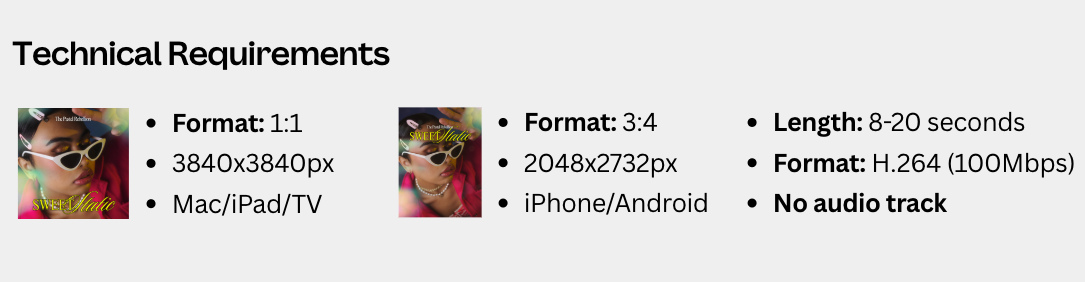
- iPhone: A vertical 1080 x 1350 video.
- Mac/iPad/TV: A square 1080 x 1080 video.
- Pro-Tip: Start by designing your animation in the larger vertical format. Continuously check that all key visual elements remain visible if the top and bottom are cropped for the square version.
- Create a Seamless Loop: Your animation should loop smoothly from the end back to the beginning to avoid a jarring jump. A simple, slow, and continuous motion is often more effective than a complex one.
Apple Music Album Page Motion Guidelines:
- First Frame: Must be identical to your static cover art.
- Looping: Create a seamless, elegant loop.
- Safe Areas: Keep essential elements (artist name, album title) away from the edges.
- Visuals: Avoid frenetic flashing or strobing effects. Keep the motion consistent with the music’s vibe.
- Duration: Between 8-20 seconds.
- Why: The heading is more evocative. The steps are re-framed into a logical workflow, starting with the “golden rule.” It introduces specific Canva features like ‘Animate’ and provides a clear “Pro-Tip” for handling the two different formats, which is a high-value piece of advice.
Pro-Tip: Design for the largest format (4K for Artist Page Motion) first, keeping in mind how it will crop for smaller or different aspect ratios. Always keep the most important visual elements in the center.
Defining Your World with Artist Page Motion
Think of your Artist Page Motion as the cinematic banner for your entire musical universe. It’s the first thing a potential fan sees when they land on your profile, giving you a massive opportunity to establish your brand, vibe, and aesthetic in a single, captivating visual.
How to Create It in Canva:
- Establish Your Concept: Unlike Album Motion, this isn’t tied to one release. Ask yourself: what is the core feeling of my music? Is it energetic, melancholic, futuristic, retro? This will guide your visual choices.
- Source High-Quality Footage: This is the perfect place to use a short, high-resolution video clip. You can upload your own (e.g., a slow-motion shot from a music video, an atmospheric landscape) or browse Canva’s extensive stock video library for something that fits your theme.
- Design for the Big Screen First: Again, you have two formats, but the workflow is key:
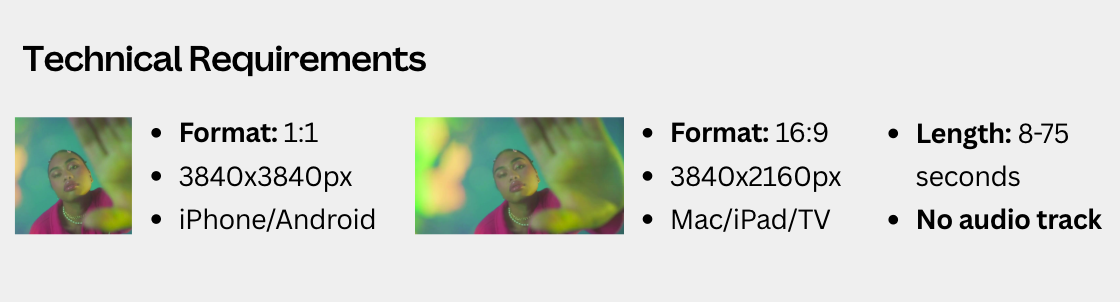
- TV/iPad/Mac: A widescreen 3840 x 2160 (4K) video.
- iPhone: A square 2160 x 2160 crop of the widescreen version.
- Crucial Tip: Design your motion graphic in the full widescreen 3840 x 2160 format. Place all of your most important visual action in the center of the frame, ensuring it will still look perfect when cropped to a square for mobile viewing.
- Keep it Cohesive: While you have creative freedom, this motion art should still feel connected to your cover art and artist image. Use a consistent colour palette, font style (if you add text), or visual theme to build a strong, recognizable brand.
Apple Music Artist Page Motion Guidelines:
- Resolution: Use high-resolution, preferably 4K, footage.
- Canvas: The video must fill the entire canvas with no borders or letterboxing.
- Branding: Your artist name/logo is optional, but if included, it must be legible and well-placed.
- Why: This revision frames the Artist Page Motion with more importance (“cinematic banner”). It provides a more structured creative process, from concept to execution. The tip for designing “Big Screen First” is a practical, professional workflow suggestion that solves a common problem for artists.
Beyond Apple Music: Creating a Unified Visual Brand with Canva
You can use Canva as a nifty design tool to produce stunning artwork, artist images, and moving artworks for other music platforms too. For example, create a snazzy Spotify Canvas moving artwork or produce the artwork for your next album across all platforms.
Thanks to Canva’s open platform, you can simply search what you’re looking to produce to find other people’s templates which you can edit from and make your own – ensuring that you have the correct dimensions and gaining inspiration for new designs.
By mastering these simple tools in Canva, you’re not just decorating your profiles—you’re building a memorable and professional visual world for your music, one platform at a time.