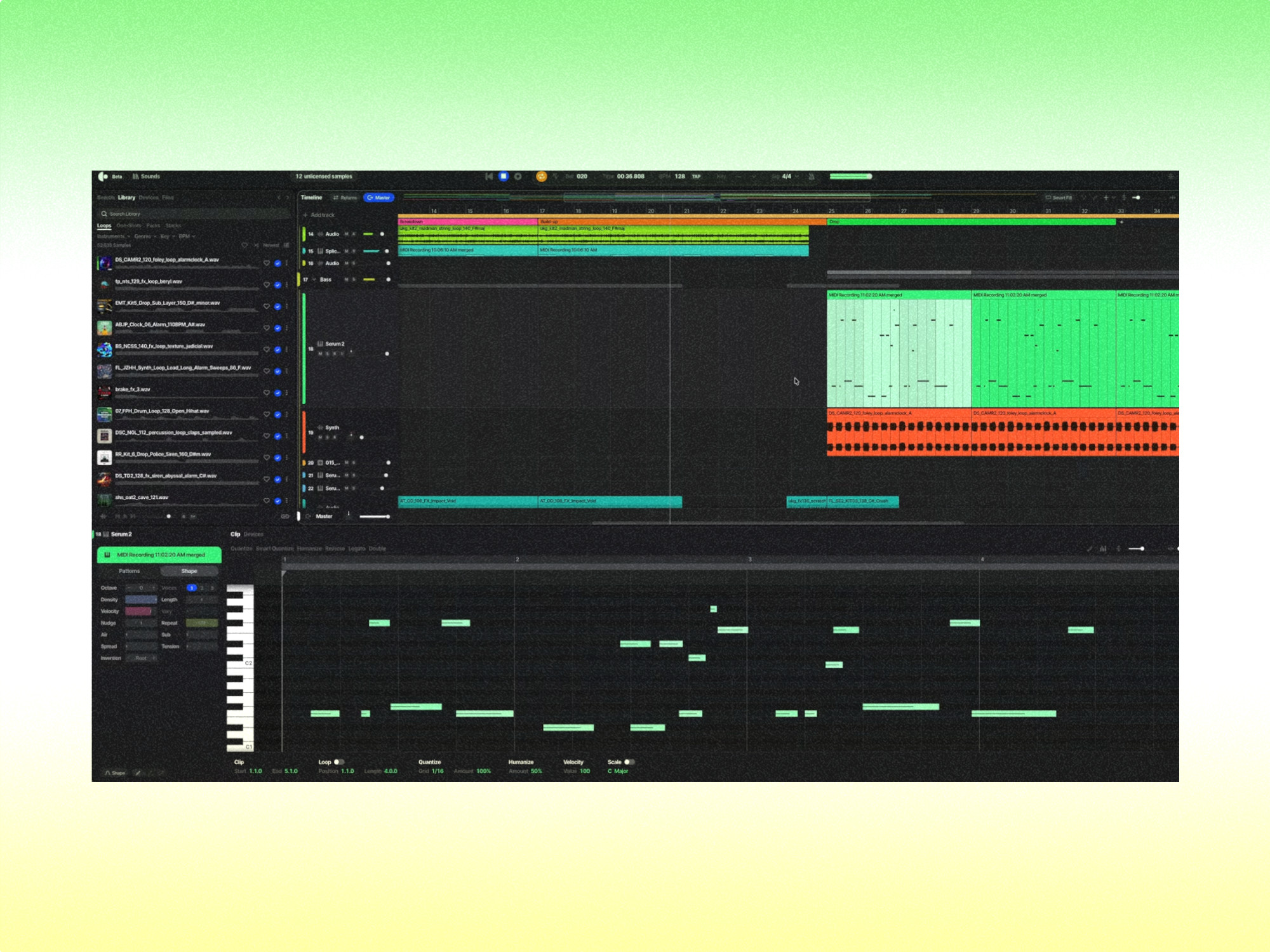
How to Export Your First Song for RouteNote From a Beginner DAW
You’ve finished recording your first song.
The vocals sound good.
The instrumental is complete.
You’re ready to release it.
But before uploading to a music distributor, you need to make sure the finished recording is exported in the right format.
This is particularly important when using beginner-friendly production software such as GarageBand, BandLab, Ableton Live Lite or FL Studio.
The process is straightforward once you understand the difference between your project file, master recording and distribution upload.
What is a DAW?
DAW stands for Digital Audio Workstation.
It is software used to record, arrange, edit and mix music.
Popular beginner options include:
- GarageBand
- BandLab
- FL Studio
- Ableton Live Lite
- Reason Free
- Reaper
- Waveform Free
Each program has different export menus.
But the underlying process is similar.
You turn the finished project into an audio file that another service can play.
Save the original project first
Before exporting, save the current DAW project.
Keep a separate backup if possible.
This is important because you may want to make changes later.
An exported audio file is not a complete replacement for the original multitrack project.
Check the final mix
Listen carefully before exporting.
Check for:
- Distortion
- Clipping
- Excess silence
- Missing instruments
- Sudden volume changes
- Unwanted background noise
- Incorrect endings
Also listen on more than one playback system if possible.
A song that sounds good on studio headphones may reveal problems on a phone or small speaker.
Export a high-quality master
Where your DAW supports it, keep a lossless copy of the finished master.
A WAV file is commonly useful for archiving and further production.
But don’t assume WAV is necessarily the file format your distributor accepts for its standard upload workflow.
The master archive and upload file can be different.
Which formats does RouteNote accept?
RouteNote’s current standard audio-upload guidance identifies FLAC and MP3 as accepted formats.
Its guidance specifies stereo audio at 44.1 kHz, with 16-bit FLAC or appropriately encoded 320 kbps MP3 as the relevant standard-format choices.
Higher-resolution audio delivery is available under separate eligibility arrangements.
Always check the current support documentation before uploading because accepted formats and account capabilities may change.
Why use FLAC?
FLAC is a lossless audio format.
It can preserve audio quality while reducing file size compared with an uncompressed WAV.
If you’ve created a lossless master, converting it properly to FLAC is generally a better choice than unnecessarily encoding it into MP3 and then converting it back.
Converting a lossy recording into FLAC does not restore information that was already discarded.
Can you upload an MP3?
Yes, RouteNote’s standard guidance also accepts correctly formatted MP3 files.
But an MP3 should be encoded appropriately rather than created by repeatedly converting between lossy formats.
Keep your original lossless master even if you’re using MP3 for delivery.
What if GarageBand exports a different format?
GarageBand and other DAWs may offer several export options depending on the version and device.
Choose the highest-quality appropriate export available.
Then use a proper conversion process if the file needs to become FLAC or MP3 for distribution.
Don’t assume the default sharing preset is the best quality setting.
What about BandLab?
BandLab can be useful for artists creating music through a browser or mobile device.
Export options vary by application and platform.
Before starting the full distribution process, check whether your version can produce a suitable finished audio file.
If it cannot export directly to the required format, create the best available master and convert it appropriately.
Use RouteNote Convert
RouteNote Convert provides audio-conversion tools for musicians.
It can help create files in formats suitable for RouteNote distribution.
For example, an artist with a WAV master may be able to convert it to a suitable FLAC upload file.
Check the selected sample rate, audio quality and channel configuration.
Avoid converting the same recording multiple times without a reason.
Check the result before uploading
After conversion, listen to the exported file.
Don’t assume that successfully creating a file means it sounds correct.
Check:
- The opening
- The loudest section
- The quietest section
- The ending
- Overall volume
- Stereo playback
Also check the file’s actual format and properties.
Don’t forget the other release requirements
Audio is only one part of a distribution submission.
You’ll also need appropriate:
- Artwork
- Artist details
- Track title
- Release date
- Contributor information
- Rights ownership
- Store selections
RouteNote’s release creation process allows artists to complete these sections before submitting for review.
Final thoughts
You don’t need expensive recording software to prepare a professional music release.
But you do need a clean, correctly exported master.
Save your project, keep a lossless archive, check RouteNote’s accepted upload formats and verify the finished file before submitting.
A few minutes of careful preparation can prevent unnecessary upload and moderation problems.