How to Add the New Apple Music Widgets in iOS 27
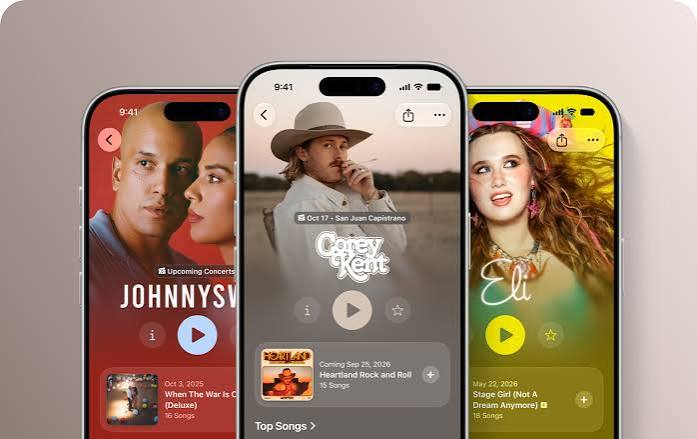
Apple Music has introduced new extra-large Home Screen widgets in iOS 27, giving iPhone users a more convenient way to browse music without opening the app first.
The widgets make better use of larger iPhone displays, offering shortcuts to recently played albums, personalised recommendations and popular music charts.
Whether you’re customising your Home Screen or looking for an easier way to access your favourite music, here’s everything you need to know about Apple Music widgets in iOS 27.
What are Apple Music widgets?
Widgets are interactive or informational elements that can appear on your iPhone’s Home Screen or Today View.
They allow apps to display useful information without requiring you to open the full application.
Apple Music has offered widgets for some time, but iOS 27 expands the possibilities with a new extra-large format.
The larger size gives Apple Music considerably more room to display albums, playlists and recommendations.
What’s new with Apple Music widgets in iOS 27?
The biggest change is the introduction of extra-large widgets.
Previously, iPhone widgets were available in small, medium and large sizes.
With iOS 27, supported apps can offer an even larger format that occupies approximately a full Home Screen page.
Apple Music introduces three extra-large widget options:
- Recently Played.
- Recommendations.
- Top Charts.
Each widget focuses on a different part of the Apple Music experience.
1. Recently Played widget
The Recently Played widget provides convenient access to music you’ve listened to recently.
This may include albums, playlists and other content from your recent listening activity.
It’s useful for anyone who regularly returns to favourite releases rather than searching for them each time.
For example, if you’re working your way through a new album, the widget can make it easier to find your way back to it.
The extra-large format allows more listening history to be displayed than smaller widgets.
2. Recommendations widget
The Recommendations widget focuses on music Apple Music thinks you might enjoy.
Rather than showing only music you’ve already played, it provides another way to explore personalised suggestions.
These recommendations are influenced by your Apple Music listening preferences and activity.
The widget can be particularly useful if you’re someone who enjoys discovering new artists or regularly explores unfamiliar genres.
With the larger format, more recommended content can be visible directly on your Home Screen.
3. Top Charts widget
The Top Charts widget is designed for listeners interested in popular and trending music.
It offers a quick way to access chart-focused content without having to navigate through Apple Music’s discovery sections.
For music fans who enjoy keeping up with popular releases, this can be a useful addition to their Home Screen.
It may also appeal to people working in the music industry who regularly follow commercial music trends.
How to add an Apple Music widget to your iPhone
Adding an Apple Music widget is straightforward.
Follow these steps:
- Unlock your iPhone and go to the Home Screen.
- Touch and hold an empty area until the app icons begin to move.
- Tap Edit, then choose Add Widget.
- Search for Music or find it in the available app list.
- Select the Apple Music widget you want to use.
- Swipe through the available size options.
- Choose your preferred widget size.
- Tap Add Widget.
- Position the widget on your Home Screen and tap Done.
If you select an extra-large widget, you may need to arrange your other app icons around it or use a dedicated Home Screen page.
How to use the extra-large Apple Music widget
Apple Music’s extra-large widgets are intended to provide a more spacious overview of music content.
On iPhone, the new format occupies approximately one full Home Screen page.
This makes it particularly suitable for people who want a music-focused page rather than a conventional collection of app icons.
You could, for example, create a dedicated music Home Screen and use a Recently Played widget to access frequently played albums.
Alternatively, a Recommendations widget could make discovering music part of your daily routine.
How to add Apple Music widgets to Today View
You don’t have to place every widget on your main Home Screen.
iOS also offers Today View, which is accessible by swiping right from the first Home Screen page.
To add a widget, open Today View, enter the widget editing interface and choose Music from the widget gallery.
Select the widget format you prefer and add it to the view.
This is a useful alternative if you want quick access to Apple Music without giving up space on your main Home Screen.
Can you customise Apple Music widgets?
Apple Music provides different widget types and sizes, allowing you to choose the information you want to prioritise.
You can also move widgets between Home Screen pages and remove them when you no longer need them.
Some widgets offer additional editing options.
To check, touch and hold the widget and look for Edit Widget.
The available customisation settings depend on the specific widget.
Why is my Apple Music widget not showing?
If you can’t find the widget you want, there are several possible explanations.
Your iPhone isn’t running iOS 27
The new extra-large widget format requires iOS 27.
Check Settings > General > Software Update to see whether an update is available.
You’re looking in the wrong app category
Apple Music widgets may appear under Music in the widget gallery.
The widget size isn’t available
Not every widget supports every size. Browse the available Apple Music widget styles to find the extra-large options.
The widget isn’t refreshing
Check your internet connection, open Apple Music and allow it to update your listening information.
If necessary, remove the widget and add it again.
Do Apple Music widgets work on the iPhone Duo?
Apple’s new foldable iPhone is particularly well suited to larger visual layouts.
With its expanded display, the iPhone Duo offers more screen space for viewing content, including music-related interfaces.
However, the extra-large widgets introduced in iOS 27 aren’t exclusive to the foldable iPhone.
Compatible iPhones running iOS 27 can also use the new widget format.
Are the new Apple Music widgets worth using?
The extra-large widgets are a welcome addition for anyone who regularly uses Apple Music.
They make it easier to access recent listening activity, discover recommended content and browse popular music.
They also give users more flexibility in how their iPhone Home Screen is organised.
Rather than treating music as just another app icon, iOS 27 allows Apple Music to become a much larger part of the Home Screen experience.
Frequently asked questions
What new Apple Music widgets are available in iOS 27?
Apple Music introduces extra-large Recently Played, Recommendations and Top Charts widgets.
How do I get the extra-large Apple Music widget?
Update to iOS 27, open the Home Screen widget gallery, select Music and choose one of the supported extra-large formats.
Can I add Apple Music widgets to Today View?
Yes. Apple Music widgets can also be added to Today View.
Do I need an iPhone Duo to use the new widgets?
No. The new widget format is part of iOS 27 and works on other compatible iPhone models.
Can I change the size of an Apple Music widget?
You can choose from supported widget sizes through the widget gallery. The available options depend on the widget type.